
Introduction
The flashlight on your iPhone is highly convenient, whether you’re searching for something in the dark or need extra light in a tricky situation. However, turning it off promptly once you’re done is crucial for saving battery life and avoiding any unwanted illumination. In this detailed guide, you’ll find several straightforward methods and advanced tips for efficiently controlling the flashlight function on your iPhone.
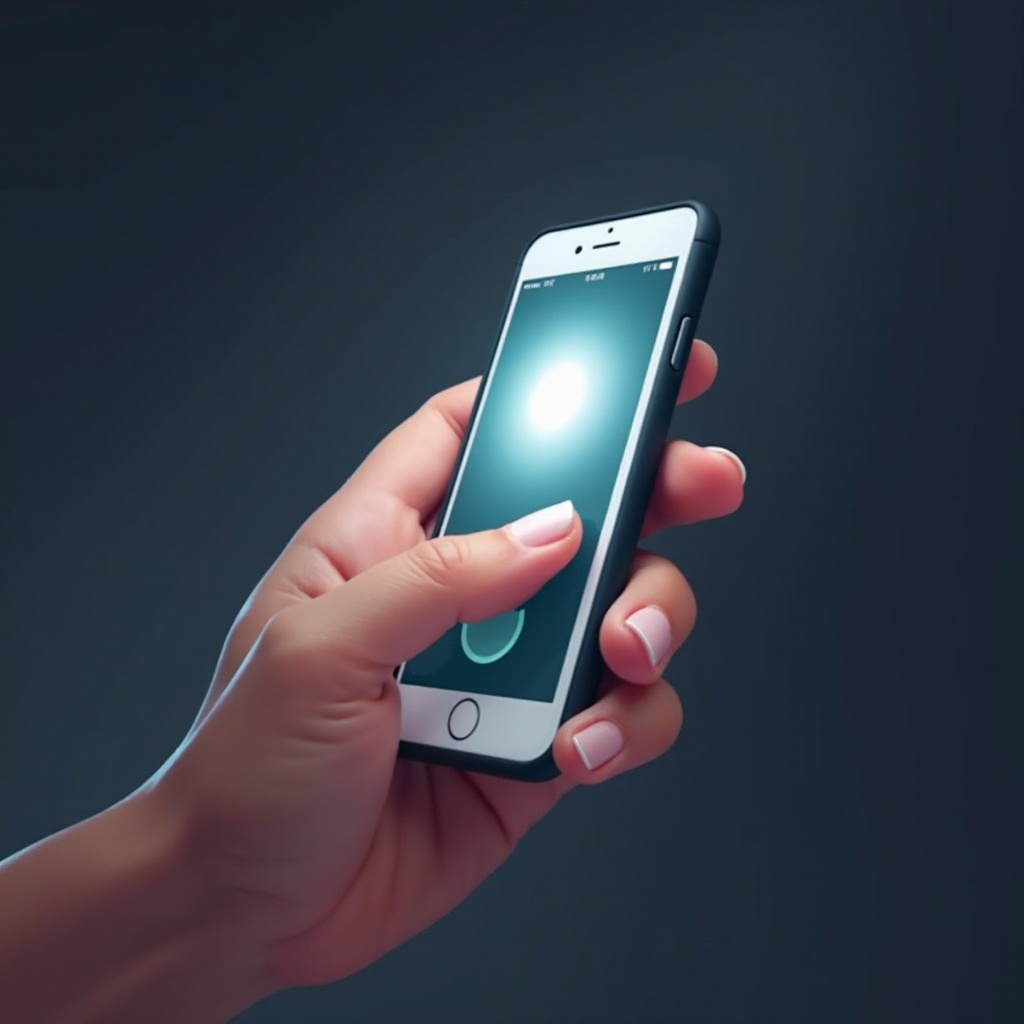
Methods to Turn Off the Flashlight on Your iPhone
Multiple options are available when it comes to turning off your iPhone flashlight, each catering to different preferences and situations. Here, we delve into these options so you can choose what works best for you.
Using the Control Center
- Access the Control Center by swiping down from the top-right corner on iPhones with Face ID, or by swiping up from the bottom on earlier models.
- Locate the flashlight icon among other controls.
- Tap the icon to switch off the flashlight.
The Control Center is arguably the easiest method for quickly managing the flashlight, but if you’re in a situation where your hands are not free, voice commands offer a hands-free solution.
Using Siri for Hands-Free Operation
- To activate Siri, press and hold the side button on newer models, or the Home button on older models. You can also say ‘Hey Siri’ if it’s set up on your device.
- Once Siri is activated, simply say ‘Turn off the flashlight.
With Siri, you can easily control your flashlight even if your hands aren’t available, providing an alternative to the manual tap method. If neither of these options best suits your situation, you can turn off the flashlight using the lock screen controls.
Accessing the Lock Screen Controls
- Activate the lock screen by tapping the screen or pressing the power button.
- Find the flashlight icon in the bottom-left corner.
- Firmly press (or long-press) the icon to toggle the light off.
Using the lock screen controls adds extra convenience, allowing you to manage the flashlight without fully unlocking your phone. From practical solutions, let’s shift focus to common issues you might encounter with your flashlight function.
Troubleshooting Common Flashlight Issues
Sometimes the flashlight might not respond as expected. Here, we highlight the most prevalent issues and how to resolve them.
Flashlight Not Responding or Won’t Turn Off
- Restart your iPhone to fix temporary glitches.
- Ensure that your iOS is up to date, as updates often fix bugs.
Should your flashlight icon also disappear, follow the steps in the next segment for a solution.
Missing Flashlight Icon and Solutions
- Check your Control Center customization in Settings > Control Center. Add the flashlight option if it’s missing.
- As a last resort, reset all settings: Settings > General > Reset > Reset All Settings.
With these steps, you can resolve common problems and optimize your flashlight function. Now let’s explore some advanced tips to make the most of this feature.
Advanced Tips for Managing iPhone Flashlight
Beyond basic usage, explore additional features to enhance your flashlight experience.
Adjusting Flashlight Brightness
- In the Control Center, press and hold the flashlight icon.
- Adjust the brightness using the slider that appears, tailoring the intensity to your needs.
Third-Party Apps for Enhanced Control
- Consider third-party apps available on the App Store that provide features like strobe lighting or set intensity levels.
These advanced tips allow customization for your specific needs, enhancing your overall experience with the iPhone’s flashlight feature.
Conclusion
Through this guide, you have explored multiple options to effectively manage your iPhone’s flashlight. Whether you’re using the Control Center, invoking Siri for hands-free operation, or utilizing the lock screen, each method ensures you can efficiently control your device’s lighting feature. Troubleshooting sections address common issues, while advanced tips offer additional customization options. With these insights, you are well-equipped to handle your iPhone flashlight effectively and with confidence.
Frequently Asked Questions
How do I add the flashlight to my Control Center?
Navigate to Settings, tap Control Center, and customize controls to include the flashlight option.
Can I use Siri to adjust the flashlight brightness?
Currently, Siri doesn’t adjust brightness. You can do this manually in the Control Center.
What should I do if my flashlight still won’t turn off?
Restart your device, check for iOS updates, or consult Apple Support for professional help.