
Introduction
Rebooting your BLU phone is a practical solution for resolving performance issues such as slowdowns, app crashes, and connectivity troubles. Recognizing when and how to reboot effectively can significantly enhance your device’s functionality. This guide will provide clear instructions and tips for rebooting your phone suitably.
Understanding the Need for a Reboot
The need to reboot your BLU phone isn’t always immediately obvious, but certain symptoms can indicate it’s time for action. Common indicators include a sluggish interface, frequent app malfunctions, overheating, connectivity issues, and rapid battery drain. Rebooting addresses these problems by clearing temporary system files and refreshing the memory, thus fostering smoother performance.
Different Methods to Reboot a BLU Phone
Several reboot methods cater to different needs, ensuring the right solution is always at hand. The soft reboot provides a quick refresh without data loss, whereas the hard reboot, or factory reset, is more drastic, eliminating all data to restore original settings. Safe Mode allows you to isolate issues arising from third-party apps by loading only essential system applications.
Transitioning from this overview, let’s delve into the specifics of each reboot technique.
How to Perform a Soft Reboot
A soft reboot is straightforward and non-invasive, making it ideal for resolving minor issues like performance dips or app glitches.
- Press and hold the power button until you see the power menu.
- Select ‘Restart’ or ‘Reboot’.
- Allow your phone to power off and back on again automatically.
This approach is efficient for everyday hiccups and ensures no personal data is affected.
How to Execute a Hard Reboot
A hard reboot, better suited for persistent issues, requires restoring your phone to factory settings:
- Backup all critical data, as this process will erase personal information.
- Access ‘Settings’ > ‘System’ > ‘Reset options’.
- Choose ‘Erase all data (factory reset)’ and confirm.
- Await completion before your phone restarts.
This method should be reserved for more severe malfunctions, given its irreversible data removal.
When to Use Safe Mode Reboot
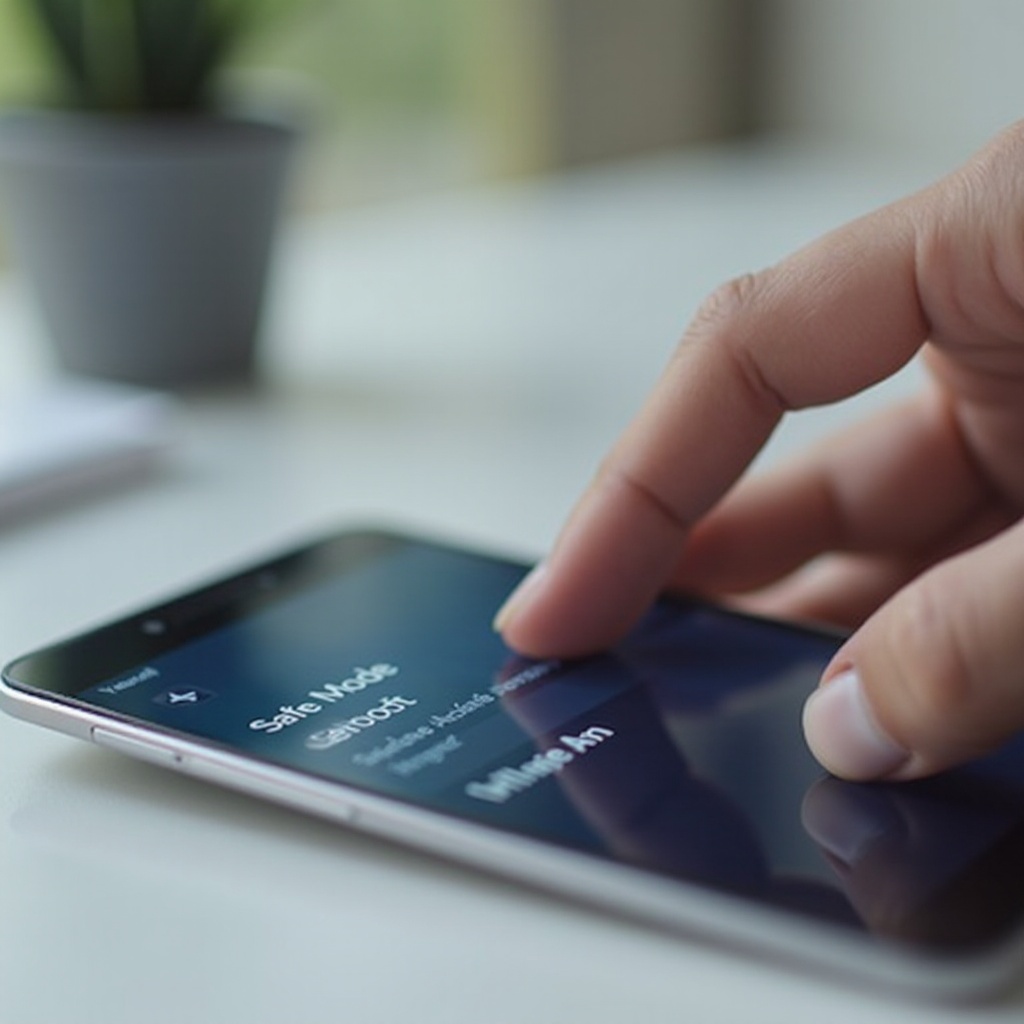
Safe Mode aids in troubleshooting, allowing you to determine if third-party apps are causing issues:
- Hold down the power button until the power-off menu appears.
- Press and hold ‘Power off’ until ‘Reboot to safe mode’ appears.
- Tap ‘OK’ to reboot.
Running your phone in Safe Mode indicates whether non-system apps are the root cause of dysfunction. Identifying such apps allows for strategic uninstallation or updates, restoring regular functionality.
Troubleshooting Common Reboot Issues
Even a straightforward reboot might encounter snags, requiring troubleshooting acumen. Common issues like a phone stuck on the boot screen can sometimes be resolved by removing and reinserting the battery (if accessible) or performing a factory reset if problems endure. If your phone doesn’t power on after rebooting, verify the charge and attempt a reset. Persistent issues beyond these checks may necessitate professional repair.
These strategies ensure that even unexpected challenges are manageable, safeguarding your device’s long-term usability.
Alternative Solutions If Reboot Fails
When rebooting doesn’t resolve the problem, further steps help identify and tackle more intricate issues. Contacting BLU customer support might provide technical guidance tailored to your specific model. Alternatively, a professional repair service can conduct a deeper diagnosis, potentially revealing hardware malfunctions. Keeping your device’s software updated is essential in preempting many issues, affording greater stability and security.
Conclusion
Regular rebooting is a simple yet effective strategy for maintaining your phone’s health and addressing minor glitches. Understanding and applying the right reboot method can save time and frustration, promoting longer-lasting and efficient device performance. For optimal results, complement regular reboots with routine software updates and conscientious handling, ensuring your phone remains a reliable companion.
Frequently Asked Questions
How often should I reboot my BLU phone?
It’s advisable to reboot your BLU phone weekly to maintain smooth performance.
Will rebooting my phone delete my data?
A soft reboot will not delete data, but a hard reboot (factory reset) will remove all personal information.
What do I do if my phone won’t reboot?
Ensure your phone is charged, try a hard reset, and if issues persist, seek professional repair services.