
Introduction
Laptop cooling systems are crucial for maintaining performance and longevity. HP Pavilion models, known for their versatility, sometimes suffer from cooling issues that can be resolved through fan replacement. This guide offers detailed instructions to replace your HP Pavilion’s fan, ensuring improved efficiency and performance.
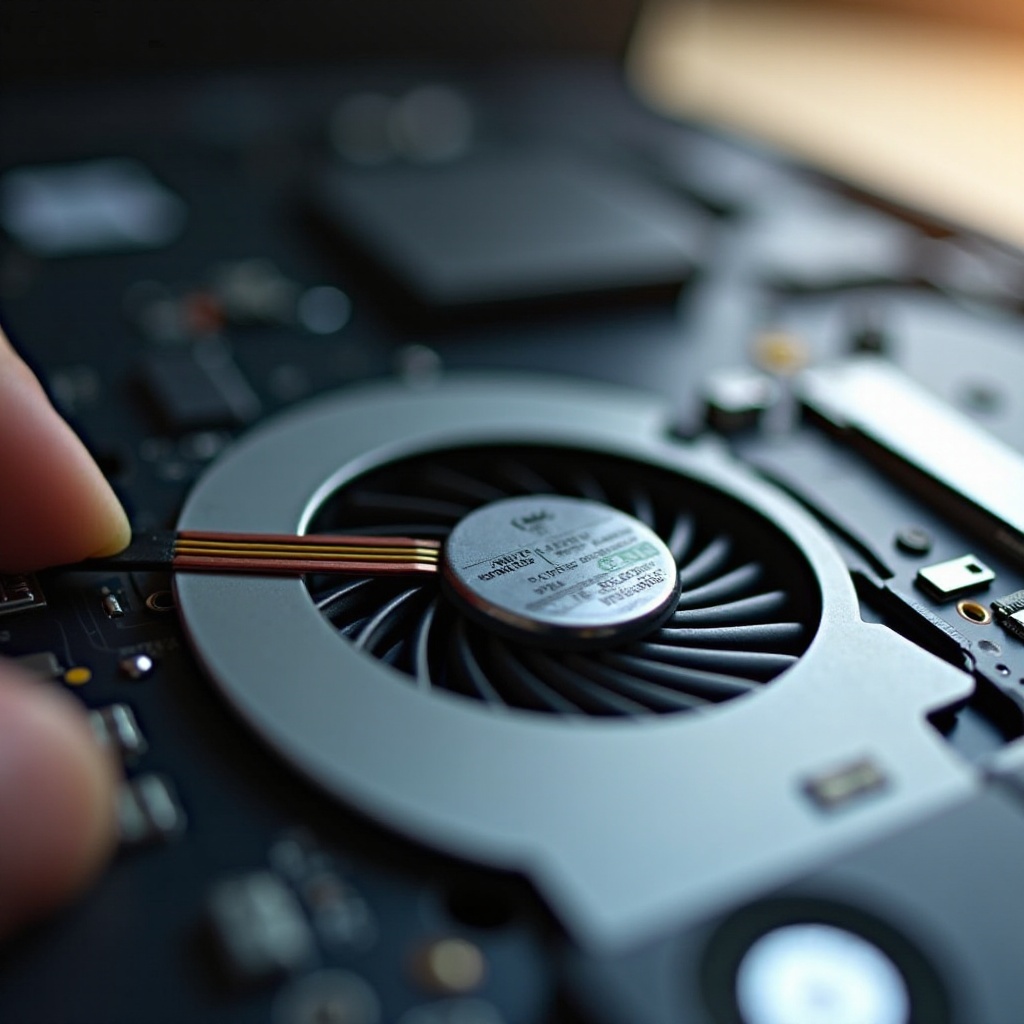
Signs Your HP Pavilion Needs a Fan Replacement
Identifying the signs of a faulty fan early can prevent further damage and prolong your laptop’s life. Here are key indicators to look out for:
-
Overheating and System Crashes: Your laptop might crash frequently due to overheating, which often results from a failing fan. This issue not only affects performance but can also lead to permanent damage.
-
Unusual Noise from the Fan Area: A noisy fan is a sign of mechanical issues. Such sounds can indicate obstructions or worn-out bearings, which require a replacement.
-
Reduced System Performance and Sudden Shutdowns: Decreased performance and unexpected shutdowns often indicate inadequate cooling. Addressing these issues promptly can prevent further deterioration.
Early detection of these problems allows you to prepare for a fan replacement, ensuring your laptop continues to perform optimally.
Preparing for Fan Replacement
Before starting the replacement process, thorough preparation is essential for a smooth experience:
-
Required Tools and Materials: Gather tools like a screwdriver set, thermal paste, and a cleaning brush or compressed air. Crucially, ensure you have the correct replacement fan for your specific HP Pavilion model.
-
Identifying the Correct Replacement Fan for Your Model: Consult your HP Pavilion manual or online resources to select the right fan. This step is critical to ensure compatibility and functionality.
With these preparations, you’re ready to proceed with disassembling your laptop to replace the faulty fan effectively.
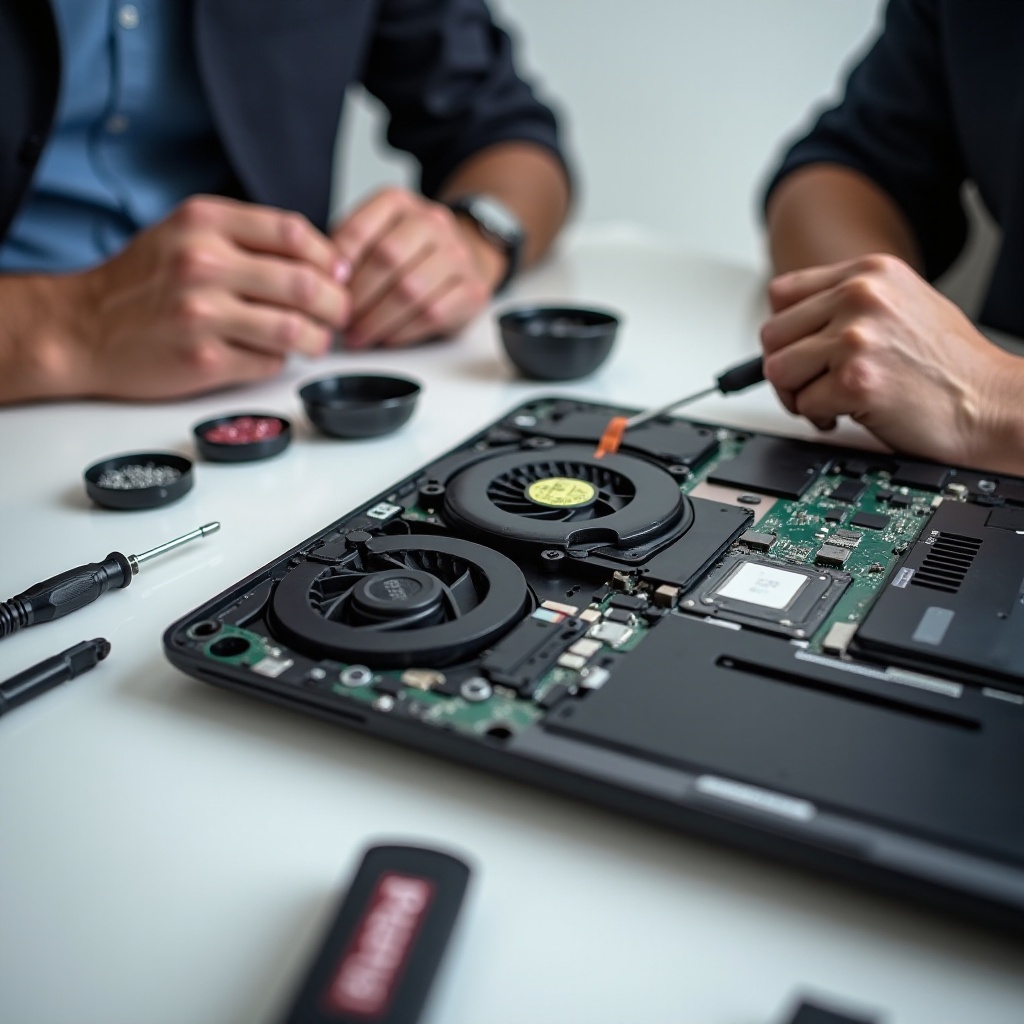
Step-by-Step Guide to Replacing Your HP Pavilion Fan
Following these detailed steps will help you replace your HP Pavilion laptop fan efficiently:
-
Safety Precautions and Initial Setup: Begin by shutting down your laptop and disconnecting all cables. Use an anti-static wrist strap to prevent electrostatic damage.
-
Disassembling Your HP Pavilion: Turn your laptop upside down, remove the battery (if possible), and locate the screws on the back. Carefully remove all screws and set them aside safely for later reassembly.
-
Removing the Faulty Fan: Once the back panel is off, locate the cooling fan near the heat sink. Disconnect the fan cable, remove securing screws, and gently lift the fan out of its bay.
-
Installing the New Fan: Position the new fan correctly, ensuring alignment with the laptop’s specifications. Secure it with screws and reconnect the power cable firmly.
-
Reassembling the Laptop: Replace the back panel, insert and tighten all screws, reinstall the battery, and reconnect external devices.
Completing these steps will ensure your new fan is properly installed and ready to function.
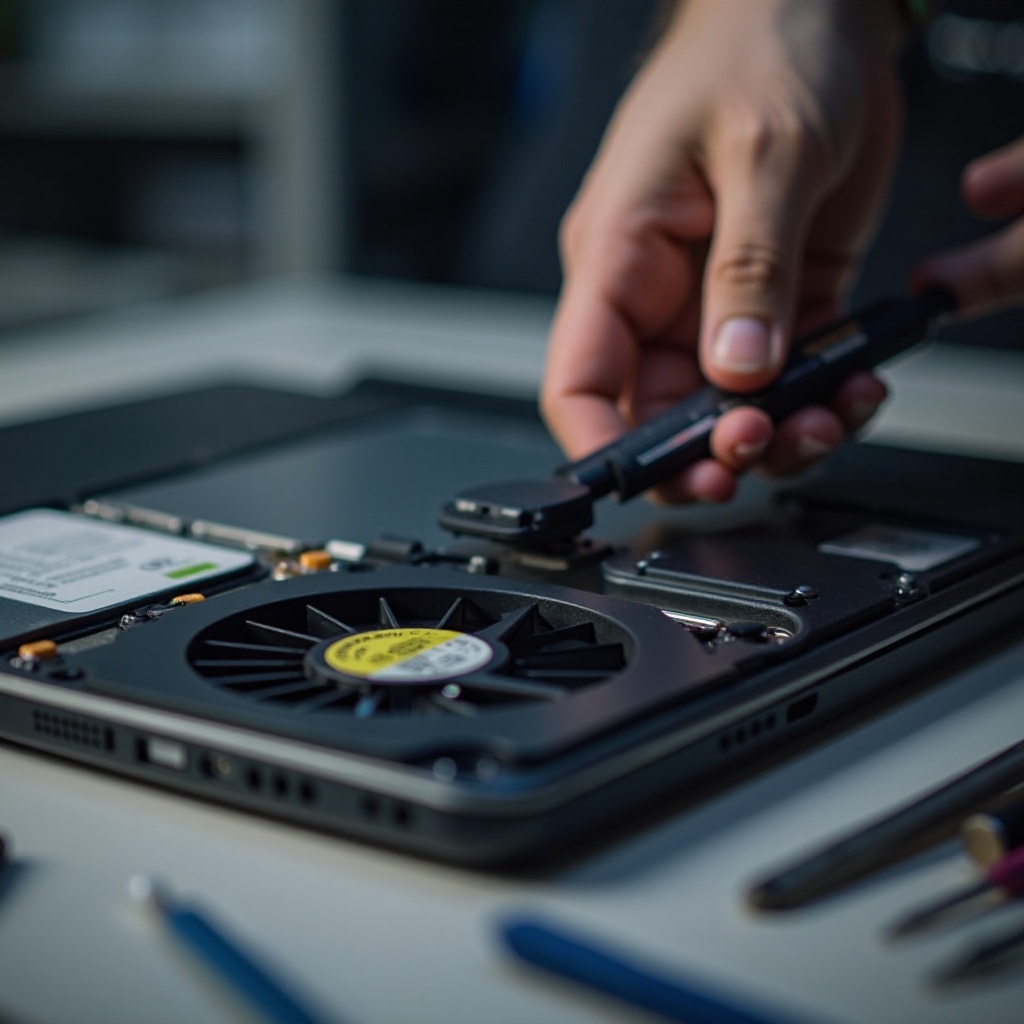
Post-Replacement Tips and Testing
After replacing the fan, it’s vital to test and ensure its correct operation:
-
Ensuring the New Fan Operates Correctly: Power on your laptop and listen for smooth fan operation without any unusual noise.
-
Monitoring Laptop Temperatures and Performance: Use software tools to check internal temperatures under various loads, ensuring that previous overheating issues are resolved.
By testing these aspects, you ensure that your fan replacement has successfully improved your laptop’s performance.
Conclusion
This guide provided a comprehensive roadmap to replacing an HP Pavilion laptop fan, thereby enhancing performance and extending the device’s lifespan. Taking the time to replace a faulty fan can significantly boost your laptop’s efficiency. Embrace the DIY process confidently with your HP Pavilion.
Frequently Asked Questions
How often should I replace my HP Pavilion fan?
Generally, consider replacing the fan every 3-5 years, or sooner if you notice any signs of malfunction.
Can I upgrade to a more efficient fan model?
Yes, as long as it is compatible with your model’s specifications. An upgrade can improve cooling performance.
What if my laptop is still overheating after replacing the fan?
Ensure thermal paste is applied properly, vents are clean, and consider additional cooling solutions like pads. If problems persist, consult a technician.