
Introduction
Experiencing an iPhone stuck in recovery mode with no restoration options can be highly frustrating. Known for their reliability, iPhones are not without faults that may cause disruption in normal operation. When entangled in recovery mode, knowing how to tackle this hurdle is crucial. This comprehensive guide will uncover the underlying reasons and outline effective solutions to rescue your device efficiently.

Understanding Recovery Mode
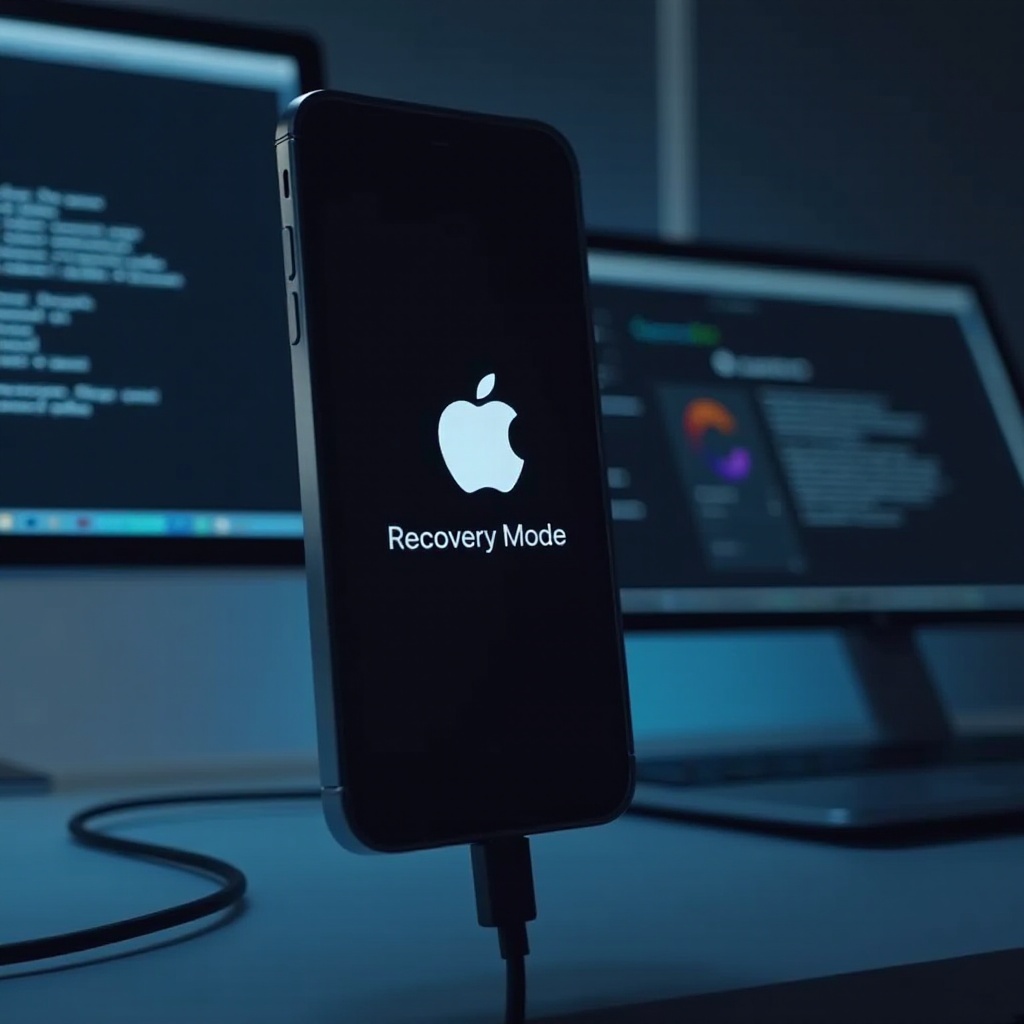
Before exploring remedies, it’s essential to understand what recovery mode signifies. Recovery mode allows an iPhone to connect to iTunes or Finder for restoration to its factory settings, playing a crucial role during fixes when the iOS is corrupted or an update fails.
- What is Recovery Mode?
Recovery mode is a fallback state designed for troubleshooting, allowing devices to interface with iTunes or Finder for restoration purposes. Primarily utilized during stalls in the operating system, recovery mode enables restoration to factory settings.
- Common Reasons iPhones Get Stuck in Recovery Mode
Various factors contribute to iPhones being trapped in recovery mode:
– Interruptions during software updates
– Hardware malfunctions
– Faulty firmware installations
– Incomplete jailbreaking attempts
Understanding these causes assists users in selecting the right approach for resolution. Let’s delve into the preliminary troubleshooting to first attempt simple fixes.
Initial Troubleshooting Steps
Faced with an iPhone in recovery limbo, these initial checks may offer a solution:
- Verify iTunes/Finder is Up-to-Date
Ensuring you are running the latest version of iTunes (or Finder for macOS Catalina and later) guarantees compatibility and updates that can resolve minor issues disrupting the restoration process.
- Check USB Cable and Port Reliability
Faulty cables could hinder communication:
1. Substitute a different Apple-certified USB cable.
2. Test with another USB port on your computer.
3. If possible, use an alternative computer for the procedure.
Should initial checks fail to remedy the situation, more intensive solutions are warranted.
Effective Solutions to Restore Your iPhone
Consider these more comprehensive methods if basic steps prove ineffective:
- Force Restart Your iPhone
A forceful restart can reset the routine:
– For iPhone 8 and later: Press and release the Volume Up, then Volume Down buttons. Hold the Side button until the Apple logo appears.
– For iPhone 7 and 7 Plus: Press and hold both the Volume Down and Sleep/Wake buttons until the Apple logo displays.
– For iPhone 6s, 6s Plus, and SE: Hold both the Home and Sleep/Wake buttons until you see the Apple logo.
- Restore Using Recovery Mode
Initiate a restoration through recovery mode:
1. Connect your iPhone to a computer with iTunes/Finder running.
2. Follow instructions to place your device in recovery mode.
3. When prompted, select ‘Restore’ to initiate the process.
- Utilize DFU Mode as a Last Resort
Device Firmware Update (DFU) mode offers a more profound restoration mechanism:
1. Connect your iPhone to the computer and open iTunes/Finder.
2. Employ model-specific steps to initiate DFU mode.
3. Restore your device through iTunes/Finder once connected.
These solutions are devised to offer a granular level of restoration, resolving software conflicts effectively.

Advanced Repair Options
In cases where conventional methods falter, explore advanced repairs:
- Use Third-Party Recovery Software
Numerous trusted software solutions exist, such as Tenorshare ReiBoot or Dr.Fone, which aid in recovering iOS systems. These tools simplify cumbersome processes with user-friendly interfaces but should be used cautiously with reputable choices.
- Seek Professional Repair Services
Persistent issues often warrant professional intervention. Accessing certified repair services or Apple Stores can identify possible hardware reparations, delivering peace of mind with trustworthy service.
Implementing these advanced strategies can overcome intricate issues that exceed typical user capabilities.
Preventive Tips to Avoid Recovery Mode Issues
Effective problem-solving is paramount, but preventive measures help sustain device health:
- Regularly Update Your iPhone’s Software
Updating iOS ensures access to the latest enhancements and bug fixes. Activating automatic updates reduces manual attention while securing optimal performance.
- Keep Your iPhone Backed Up
Routine backups safeguard your data against unexpected loss. Utilize iCloud or iTunes/Finder for maintaining consistent off-site storage.
Awareness and proactive measures significantly decrease the likelihood of critical malfunctions.
Conclusion
Fixing an iPhone stuck in recovery mode requires a strategic blend of trial-and-error troubleshooting and advanced solutions. By understanding causes and implementing effective fixes, preventative steps can bolster device resilience against recurrences. However, professional consultation remains a viable option for persistent challenges beyond DIY efforts.
Frequently Asked Questions
Why does my iPhone keep entering recovery mode?
This often happens due to incomplete updates or software errors. Ensure all updates are finalized to prevent issues.
Can I get my data back if my iPhone is stuck in recovery mode?
Data recovery depends on backups taken before encountering the issue. Regularly backing up with iCloud or a computer aids in data recovery.
How long does a recovery mode restore usually take?
Typically, a recovery mode restore takes between 15 minutes to an hour, depending on issue severity and device model.