
Introduction
Having an unresponsive screen can be exasperating, particularly when it disrupts day-to-day activities. If the left side of your iPhone screen isn’t working, you might find yourself struggling to type, scroll, or navigate through apps efficiently. This guide will explore the reasons behind this issue and provide actionable solutions to restore full screen functionality.

Common Causes of an Unresponsive Left Side of iPhone Screen
Recognizing potential causes can guide you toward effective troubleshooting. Here’s why your iPhone’s screen might act up:
- Software Glitches: Software bugs can cause sections of your screen to malfunction.
- Physical Damage: Accidental drops could have physically damaged the screen, affecting touch response.
- Hardware Issues: Problems with internal components may result in screen malfunction.
Pinpointing these causes makes identifying suitable troubleshooting methods more straightforward. With these in mind, let’s proceed to initial checks that may solve the issue.
Initial Checks Before Troubleshooting
Conducting preliminary checks can help simplify the troubleshooting process:
- Restart Your iPhone: Sometimes, turning the device off and back on can resolve software glitches.
- Update iOS Software: New updates can fix bugs that might contribute to unresponsive screens. Check available updates by going to ‘Settings > General > Software Update’.
- Inspect for Physical Damage: Examine your phone for visible cracks or other damage that might affect screen operation.
Completing these checks can resolve minor problems. If issues persist, it’s time to explore detailed software solutions.
Step-by-Step Software Solutions
Addressing software-based reasons for screen issues often proves effective. Follow these steps:
- Force Restart Your Device:
-
For iPhone 8 and later models, quickly press and release the Volume Up button, followed by the Volume Down button. Then, hold the Side button until you see the Apple logo.
-
Reset All Settings:
-
Navigate to ‘Settings > General > Reset > Reset All Settings’ to restore default settings without losing personal data.
-
Use AssistiveTouch:
- As a temporary measure, enable AssistiveTouch by accessing ‘Settings > Accessibility > Touch > AssistiveTouch’ and turning it on.
If your screen still doesn’t respond after these software solutions, hardware issues may be the underlying problem.
Understanding Hardware Issues
When troubleshooting fails to solve the problem, hardware issues might be to blame:
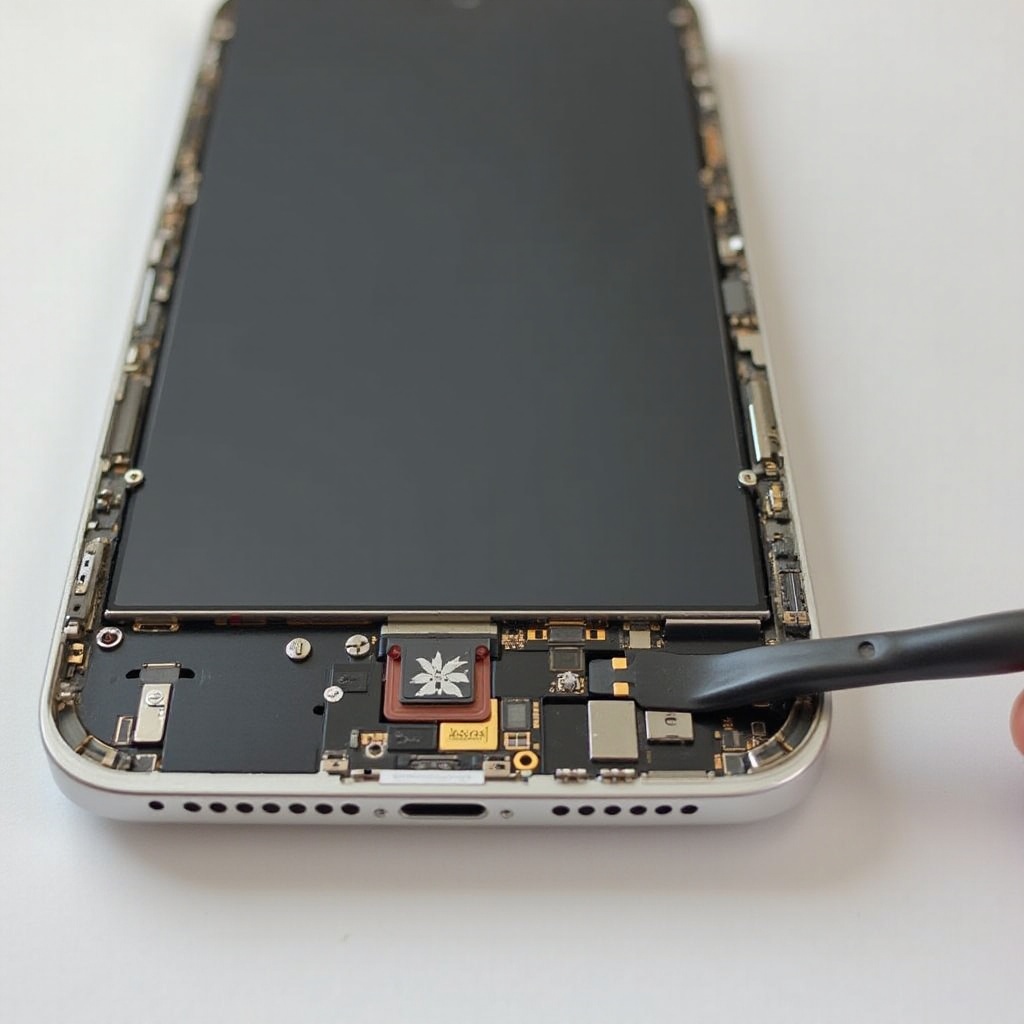
- Identifying Signs of Screen Damage: Look for signs like unresponsive sections, ghost touches, or visual defects on the screen which indicate hardware malfunctions.
- When to Seek Professional Repair: Consider professional repair when you notice persistent issues or visible damage. Certified technicians can accurately pinpoint and resolve hardware problems.
Recognizing symptoms and knowing when to seek expert help can save time and further damage.
Preventing Future Screen Problems
Prevention helps keep your device functioning properly longer. These tips can protect your iPhone from future screen malfunctions:
- Use a Protective Case and Screen Protector: Shield your device from falls and impacts with high-quality cases and screen protectors.
- Best Practices for Device Care: Avoid exposing your iPhone to extreme temperatures and maintain cleanliness of the screen to ensure optimal responsiveness.
Implementing these preventive measures extends your device’s life and enhances daily utility.
Conclusion
Repairing an unresponsive left side of your iPhone screen involves diagnosing the problem accurately, applying suitable software solutions, and understanding when professional intervention is necessary. By following this guide, you can restore your iPhone’s functionality effectively and avoid persistent issues.
Frequently Asked Questions
What should I do if only part of my iPhone screen is working?
Restart your device and check for updates. Inspect for physical damage and try a force restart. If issues persist, consider a professional evaluation.
Can a software update fix an unresponsive screen?
Yes, keeping your iOS updated can resolve bugs causing screen issues. Always check and install available updates for potential fixes.
How do I know if my iPhone screen problem is hardware-related?
Persistent unresponsiveness, visible damage, or malfunction that doesn’t respond to software fixes suggests a hardware issue. Consult a technician for verification.