
Introduction
Audio problems on a Mac can be a significant hindrance, whether you’re working or relaxing. When sound issues arise, they can disrupt your day. Luckily, most audio problems can be easily fixed with some basic troubleshooting. This comprehensive guide walks you through essential steps to restore sound on your Mac, from initial checks to advanced solutions.

Check the Basics
Start with the most straightforward solutions when addressing audio issues on your Mac.
-
Volume Settings: Check if your Mac’s volume is muted or set to low by clicking the volume icon in the menu bar.
-
Mute Status: Press the ‘Mute’ key to ensure your Mac isn’t muted by accident.
-
Connections: Verify that headphones or speakers are properly plugged into the audio port. Reconnect them to ensure a snug fit.
If your Mac’s audio still isn’t working, the issue might be deeper, requiring more detailed troubleshooting.
Software Troubleshooting
With basic checks complete, investigate potential software-related issues that could be causing problems.
-
Update macOS: System updates often include essential drivers and bug fixes. Go to System Preferences > Software Update, install available updates, and restart your Mac.
-
Audio Settings: In System Preferences, navigate to ‘Sound’. Ensure the correct output device is selected. Applications, especially media and communication apps, may have separate audio settings to check.
These software adjustments often solve common problems, but if the issue persists, it may involve your Mac’s hardware.
Hardware Checks
After addressing software, examine your Mac’s hardware for potential problems that could affect audio performance.
-
Audio Ports: Use compressed air or a cotton swab to clean any debris from the jack.
-
Alternate Devices: Connect different headphones or speakers to test if audio plays through them.
If hardware seems intact, consider resetting core system components to resolve the issue.
Reset Core Audio and SMC
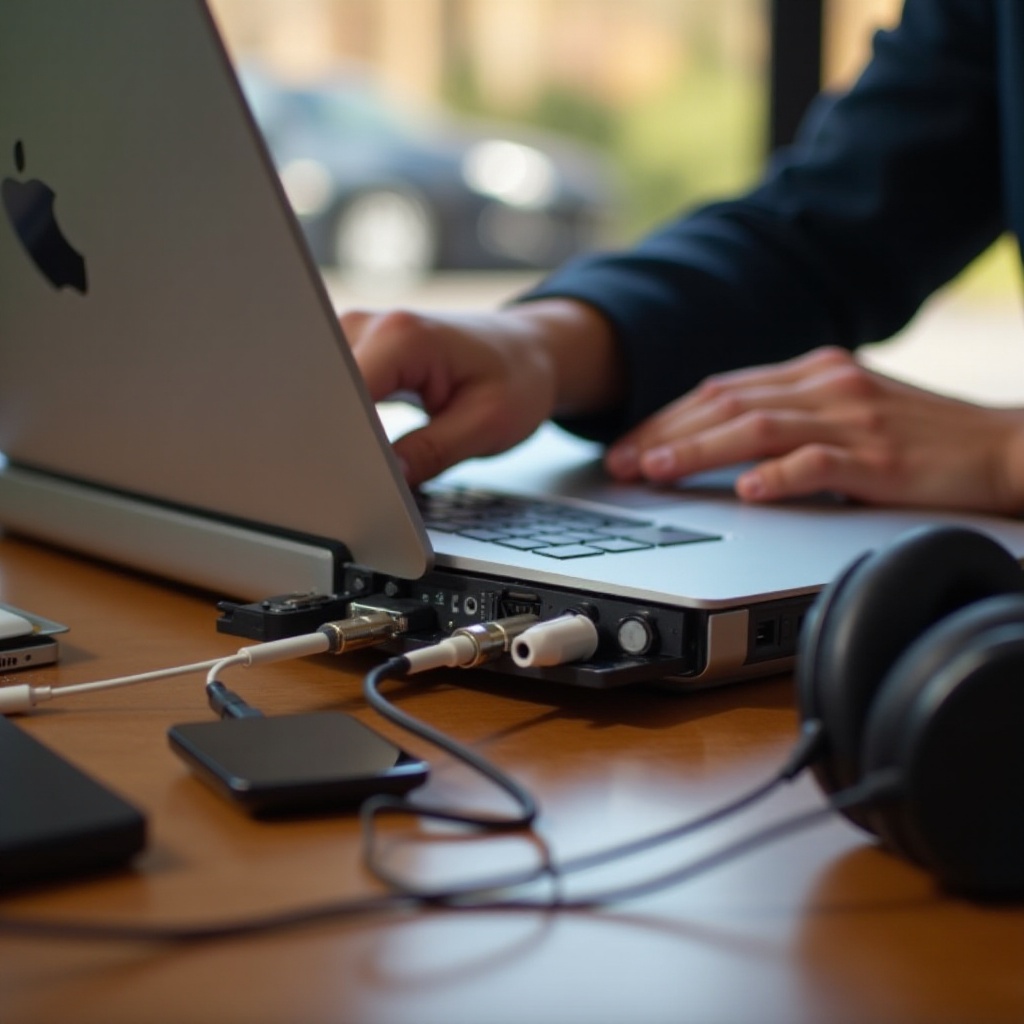
Resetting your Mac’s audio system and management controller can often return sound functionality.
- Reset Core Audio:
- Open ‘Activity Monitor’ from Applications > Utilities.
-
Locate the ‘CoreAudio’ process, select it, and click the X icon to stop it. This restarts the audio services.
-
Reset SMC:
- Shut down your Mac.
- For non-removable battery models, hold ‘Shift + Control + Option + Power’ for ten seconds.
- Release keys and restart your Mac.
If these resets don’t work, consider more advanced troubleshooting techniques.
Advanced Troubleshooting Techniques
When simpler methods fail, these advanced options might resolve your Mac’s audio issues.
-
Safe Mode: Restart your Mac in Safe Mode by holding ‘Shift’ during startup. This clears caches and disables non-essential software. Test the audio while in Safe Mode to identify software conflicts.
-
Reinstall macOS: As a last resort, reinstall your operating system. Ensure backups are created. In Recovery Mode, select ‘Reinstall macOS’ from the options menu to start anew.
If advanced troubleshooting doesn’t yield results, it’s time to involve professional support.
Seek Professional Support
If all troubleshooting steps fail, professional help may be necessary. Here’s how to proceed:
-
Apple Support: Reach out through the official website or arrange for repairs. Have your Mac’s serial number ready, and note the troubleshooting steps you’ve attempted.
-
Service Preparation: Backup data and remove any cases or accessories.
Quickly seeking professional services can prevent additional damage and ensure your Mac’s proper functioning.
Conclusion
Many Mac audio issues can be resolved quickly with some basic and advanced troubleshooting. From checking connections and software settings to more complex system resets, this guide covers all bases. Regular maintenance and updates can help prevent future issues, keeping your Mac’s audio in top condition.
Frequently Asked Questions
Why is the sound not working on my Mac after updating to macOS 2024?
Recent updates can alter audio settings unintentionally. Verify and adjust these settings post-update.
How can I fix my MacBook’s audio if it’s stuck on mute?
Check system preferences and keyboard settings to ensure mute isn’t activated. Reset core audio if stuck.
Is it possible for system updates to fix hardware-related audio issues on my Mac?
Updates typically address software, yet improved drivers can also rectify minor hardware issues. Major faults require professional repair.