
Introduction
Touch ID technology is integral to the security of smartphones, providing both convenience and an additional layer of protection. Knowing how to reset this feature is crucial, whether due to forgotten fingerprints, responsiveness issues, or simply to strengthen security. This comprehensive guide aims to explain the significance of resetting Touch ID and how to carry it out effectively.
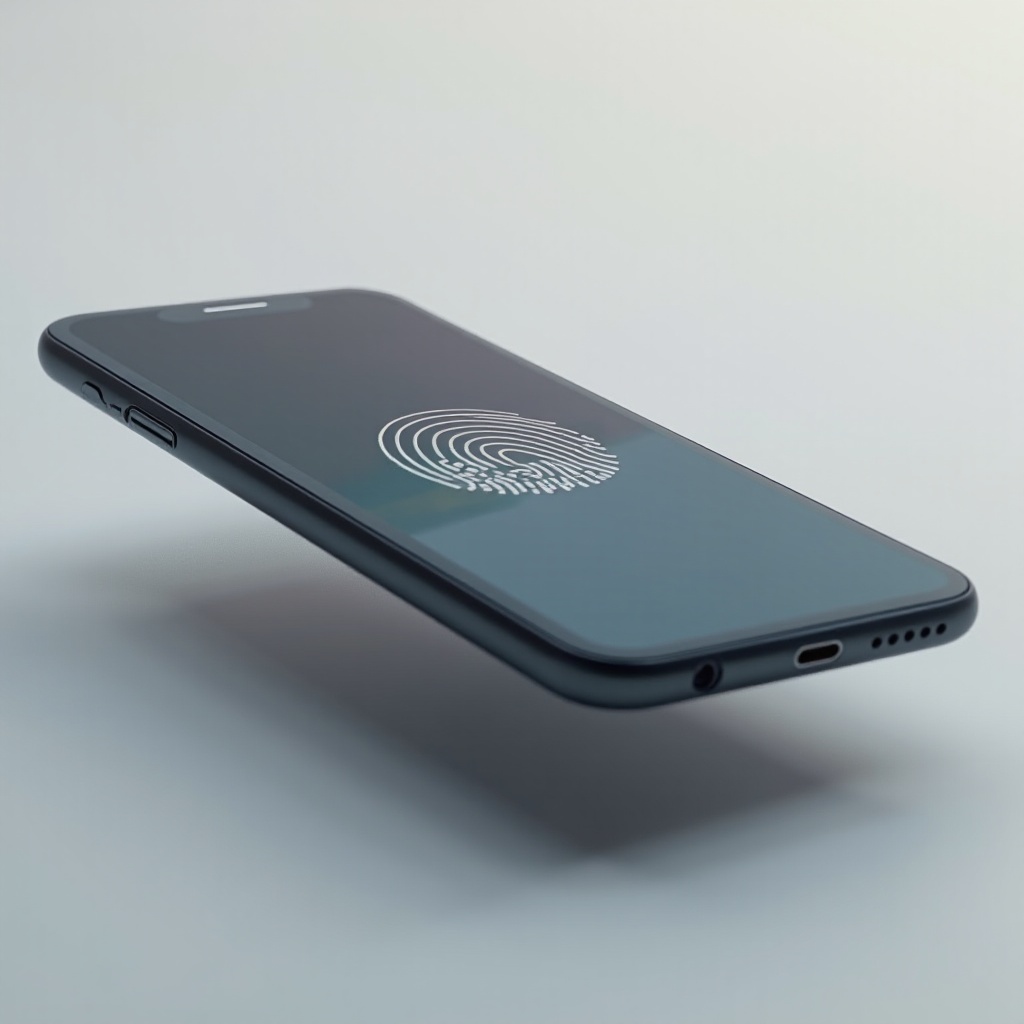
Understanding Touch ID
Touch ID is a biometric authentication system that uses fingerprint recognition to unlock devices and authorize transactions. This feature, common in many smartphones, particularly Apple’s lineup, offers speedy and secure access, eliminating the need to remember complex passwords. Moreover, Touch ID enhances the security framework by requiring a unique fingerprint for access, drastically reducing the risk of unauthorized entries.
As digital threats evolve, robust authentication methods like Touch ID become indispensable. A solid understanding of its workings underscores the necessity of regular resets and updates, ensuring the system maintains peak performance and security.

Common Scenarios Necessitating a Touch ID Reset
There are several instances where a Touch ID reset becomes necessary. If you add or delete fingerprints, resetting ensures the accurate registration of data. Reduced responsiveness may also warrant a reset to recalibrate and optimize the system. Furthermore, periodic resets enhance your smartphone’s security by refreshing biometric data, keeping your device’s protection up-to-date against potential threats.
This emphasis on security and functionality highlights the need to be familiar with the reset process. Knowing when and how to reset can significantly improve device security and performance.
Step-by-Step Guide to Reset Touch ID
Understanding the need for a reset is only the first step. Here’s how to perform one on your iPhone:
-
Prepare Your Device: Ensure your iPhone is running the latest iOS version for optimal compatibility, which often resolves any software-related issues affecting Touch ID.
-
Access Settings: Navigate to ‘Settings’, then tap on ‘Touch ID & Passcode’.
-
Remove Existing Fingerprints: Select each registered fingerprint and choose ‘Delete Fingerprint’ to clear the current data.
-
Restart Your Device: A reboot can resolve temporary software glitches. This simple action is recommended after deleting fingerprints.
-
Re-register Fingerprints: Go back to ‘Touch ID & Passcode’ and select ‘Add a Fingerprint’. Follow the on-screen instructions to complete the fingerprint registration.
Executing these steps effectively resets Touch ID, ensuring better performance and enhanced security.

Troubleshooting Post-Reset Issues
Despite completing a reset, some users might experience lingering issues with Touch ID functionality. If you find Touch ID non-operational, ensure that your fingerprint sensor is clean and free from any dirt or debris that might impair its performance. Likewise, inspect your fingertips for any foreign substances.
Persisting problems could necessitate checking for software updates that often contain patches for known issues. In persistent cases, a factory reset might be considered, albeit as a last resort due to its erasure of all data.
Should complications continue, it could indicate a hardware issue. Seeking professional service support from Apple’s team or authorized service providers could be a necessary step. Being equipped with these troubleshooting strategies ensures your Touch ID operates as smoothly as intended.
Best Practices for Maintaining Touch ID
For optimal functioning, regular maintenance of Touch ID is crucial. This involves keeping your software updated, as Apple frequently releases updates that enhance Touch ID’s reliability and performance. Proper fingerprint registration is also vital—ensure your hands are clean, and the fingerprint sensor is clear of obstructions during the scanning process.
Additionally, conducting periodic resets serves as a preventive measure maintaining the system’s integrity and performance while providing an updated line of defense against potential security threats.
By incorporating these best practices, you not only fortify your smartphone against unauthorized access but also maintain its usability at an optimal level.
Conclusion
Touch ID represents a fusion of convenience and security within the smartphone framework. By understanding how to reset and maintain this functionality, you effectively shield your personal information and comprehensive mobile experience. Engaging in these practices reflects a proactive approach to digital security in an ever-evolving technological landscape.
Frequently Asked Questions
How often should I reset my Touch ID for security?
Consider resetting Touch ID every few months, especially if you frequently modify fingerprint registrations or encounter responsiveness issues.
Can resetting Touch ID help with responsiveness issues?
Yes, resetting Touch ID can recalibrate the system, improving its responsiveness by ensuring current and precise biometric data.
How can I ensure my Touch ID remains secure?
Maintain your Touch ID security by updating software, cleaning the fingerprint sensor, and periodically resetting to preserve system integrity.